[Directx11][C++][3D]5. Light
학습 페이지
www.inflearn.com

오늘부터는 Direct x 에서 사용되는 조명에 대해 배워보자
모든 물체가 보이기 위해서는 조명이 필요하다. 물체에서 반사된 빛이 우리 눈에 보이면서 물체의 색이 인식된다. 하지만 이 빛은 정반사만 이루어지는 것이 아니라 난반사도 이루어지는데 이러한 빛까지 실시간으로 모두 계산하기에는 불가능
하다. 그렇기 때문에 중요한 점은 최소한의 비용으로 효율을 내는 조명 연산식을 통해 조명효과를 만드는 것이다.
대표적으로 사용되는 조명에는 Ambient, Diffuse, Specular, Emissive가 있다
조명에는 색상, 음양효과등이 필요하다.
1.Ambient
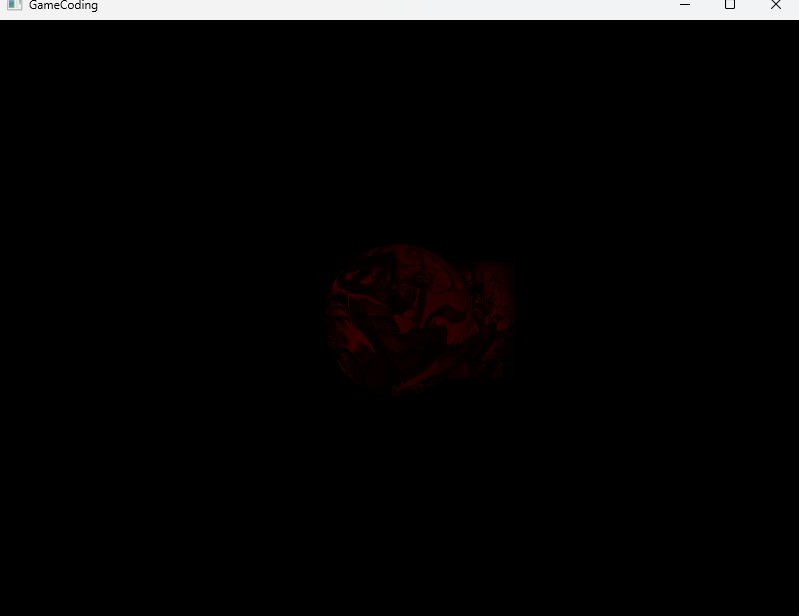
일단 처음으로 Ambient Light를 만들어보자. 이 조명은 주변광 또는 간접광으로 불리며 광원에 의해 직접적으로 빛을 받는 것이 아니라 주변 물체에 의해 받는 빛이다. 여러 곳에서 반사되면서 광원이 불분명하지만 최종적으로 물체에 도달한 빛으로 일정한 밝기와 색을 가지고 있다. 일정한 방향으로 나타나는 빛이다. 광원이 희미해도 물체가 보일 수 있도록 해주기
도 한다.
일단 shader 코드를 하나 새로 만들어서 광원의 Ambient 값과 물체의 Ambient값을 받아서 PS 단계에서 곱해준 값을
내보내도록 하자
Lighting_Ambient.fx
#include "00. Global.fx"

//광원자체의 색상
float4 LightAmbient;
//물체 재질 색상- 빛을 얼마나 받아들이는지
float4 MaterialAmbient;

VertexOutput VS(VertexTextureNormal input)
{
	VertexOutput output;
    output.position = mul(input.position,W);
    output.position = mul(output.position, VP);

    output.uv = input.uv;
    //회전고려
    output.normal = mul(input.normal, (float3x3) W);

	return output;
}

Texture2D Texture0;

// Ambient (주변광 / 환경광)
// 일정한 밝기와 색
// 수많은 반사 - 불분명한 광원

float4 PS(VertexOutput input) : SV_TARGET
{
    float4 color = LightAmbient * MaterialAmbient;
	//텍스처 -> 샘플링된 좌표
    return color;
    //return Texture0.Sample(LinearSampler, input.uv);
}

technique11 T0
{
	//하나의 통로
    PASS_VP(P0, VS, PS)
};
이에 맞게 메인코드에서 Update부분에 광원의 주변광과 물체의 주변광 값을 임의로 설정해주자
AmbientDemo.cpp
#include "pch.h"
#include "12. AmbientDemo.h"
#include "GeometryHelper.h"
#include "Camera.h"
#include "CameraScript.h"
#include "MeshRenderer.h"

void AmbientDemo::Init()
{
	RESOURCES->Init();
	_shader = make_shared<Shader>(L"09. Lighting_Ambient.fx");

	// Camera
	_camera = make_shared<GameObject>();
	_camera->GetOrAddTransform()->SetPosition(Vec3{ 0.f,0.f,-10.f });
	_camera->AddComponent(make_shared<Camera>());
	_camera->AddComponent(make_shared<CameraScript>());

	//Object
	_obj = make_shared<GameObject>();
	_obj->GetOrAddTransform();
	_obj->AddComponent(make_shared<MeshRenderer>());
	{
		_obj->GetMeshRenderer()->SetShader(_shader);
	}
	{
		auto mesh = RESOURCES->Get<Mesh>(L"Sphere");
		_obj->GetMeshRenderer()->SetMesh(mesh);
	}
	{
		//Texture
		auto texture = RESOURCES->Load<Texture>(L"Veigar", L"..\\Resources\\Textures\\veigar.jpg");
		_obj->GetMeshRenderer()->SetTexture(texture);
	}

	//Object2
	_obj2 = make_shared<GameObject>();
	_obj2->GetOrAddTransform()->SetPosition(Vec3{ 0.5f,0.f,2.f });
	_obj2->AddComponent(make_shared<MeshRenderer>());
	{
		_obj2->GetMeshRenderer()->SetShader(_shader);
	}
	{
		auto mesh2 = RESOURCES->Get<Mesh>(L"Cube");
		_obj2->GetMeshRenderer()->SetMesh(mesh2);
	}
	{
		//Texture
		auto texture2 = RESOURCES->Load<Texture>(L"Veigar", L"..\\Resources\\Textures\\veigar.jpg");
		_obj2->GetMeshRenderer()->SetTexture(texture2);
	}

	RENDER->Init(_shader);
}

void AmbientDemo::Update()
{
	_camera->Update();
	RENDER->Update();

	//조명
	Vec4 lightAmbient{ 0.2f, 0.f, 0.f, 1.f };
	_shader->GetVector("LightAmbient")->SetFloatVector((float*)&lightAmbient);

	{
		//모든 색을 다 받아주는 재질
		Vec4 materialAmbient(1.f);
		_shader->GetVector("MaterialAmbient")->SetFloatVector((float*)&materialAmbient);
		_obj->Update();
	}

	{
		//모든 색을 다 받아주는 재질
		Vec4 materialAmbient(1.f);
		_shader->GetVector("MaterialAmbient")->SetFloatVector((float*)&materialAmbient);
		_obj2->Update();
	}

}

void AmbientDemo::Render()
{

}
2.Diffuse
Diffuse Light는 분산광으로 물체의 표면에서 바로 반사돼서 눈에 들어오는 빛으로 우리가 지난 시간에 노멀벡터를 통해 빛과 연산해준 것과 같은 빛인것이다. 이 빛에 대한 연산은 람베르트 공식을 통해 이루어지는데 핵심은 각도에 따라 빛의 세기가 달라진다는 것이다.
일단 shader 파일을 하나 새로 만들어주자 이때 LightDir,(빛의 방향) LightDiffuse(빛의 색상), MaterialDiffuse(물체가 받아드릴 색상)과 같은 변수를 두고 이를 통해 빛의 연산이 이루어지도록 하자. 일단 물체의 normal벡터와 빛의 반대방향의 내적을 계산하고 빛의 색과 빛을 얼마나 받아들이는지에 관한 값을 곱해주어서 최종적인 Color 데이터를 반환해주면된다.
Lighting_Diffuse.fx
#include "00. Global.fx"

float3 LightDir;
//광원색
float4 LightDiffuse;
//물체 재질 색상- 빛을 얼마나 받아들이는지
float4 MaterialDiffuse;
Texture2D DiffuseMap;

VertexOutput VS(VertexTextureNormal input)
{
	VertexOutput output;
    output.position = mul(input.position,W);
    output.position = mul(output.position, VP);

    output.uv = input.uv;
    //회전고려
    output.normal = mul(input.normal, (float3x3) W);

	return output;
}


//Diffuse - 분산광

float4 PS(VertexOutput input) : SV_TARGET
{
    float4 color = DiffuseMap.Sample(LinearSampler, input.uv);

    //람베르트
    float value = dot(-LightDir, normalize(input.normal));
    color = color * value * LightDiffuse * MaterialDiffuse;

    return color;
}

technique11 T0
{
	//하나의 통로
    PASS_VP(P0, VS, PS)
};
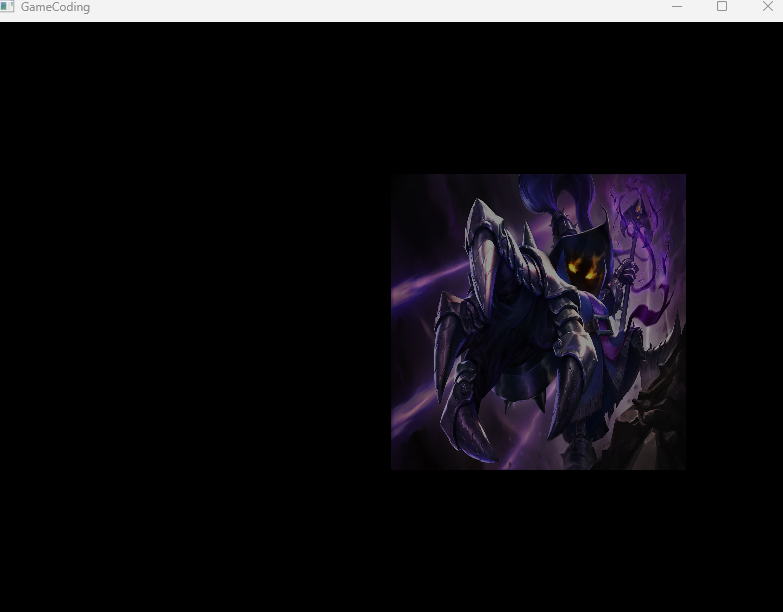
이렇게 바꿔주고 이제 광원에 대한 정보와 각 물체의 재질에 대한 정보를 지정해주면 이제 Diffuse Light가 적용된 물체의 모습을 볼 수 있다. 지금은 오른쪽 대각선 아래방향으로 빛이 들어오기 때문에 왼쪽 위방향이 잘 보이게 된다.
DiffuseDemo.cpp
#include "pch.h"
#include "13. DiffuseDemo.h"
#include "GeometryHelper.h"
#include "Camera.h"
#include "CameraScript.h"
#include "MeshRenderer.h"

void DiffuseDemo::Init()
{
	RESOURCES->Init();
	_shader = make_shared<Shader>(L"10. Lighting_Diffuse.fx");

	// Camera
	_camera = make_shared<GameObject>();
	_camera->GetOrAddTransform()->SetPosition(Vec3{ 0.f,0.f,-10.f });
	_camera->AddComponent(make_shared<Camera>());
	_camera->AddComponent(make_shared<CameraScript>());

	//Object
	_obj = make_shared<GameObject>();
	_obj->GetOrAddTransform();
	_obj->AddComponent(make_shared<MeshRenderer>());
	{
		_obj->GetMeshRenderer()->SetShader(_shader);
	}
	{
		auto mesh = RESOURCES->Get<Mesh>(L"Sphere");
		_obj->GetMeshRenderer()->SetMesh(mesh);
	}
	{
		//Texture
		auto texture = RESOURCES->Load<Texture>(L"Veigar", L"..\\Resources\\Textures\\veigar.jpg");
		_obj->GetMeshRenderer()->SetTexture(texture);
	}

	//Object2
	_obj2 = make_shared<GameObject>();
	_obj2->GetOrAddTransform()->SetPosition(Vec3{ 0.5f,0.f,2.f });
	_obj2->AddComponent(make_shared<MeshRenderer>());
	{
		_obj2->GetMeshRenderer()->SetShader(_shader);
	}
	{
		auto mesh2 = RESOURCES->Get<Mesh>(L"Cube");
		_obj2->GetMeshRenderer()->SetMesh(mesh2);
	}
	{
		//Texture
		auto texture2 = RESOURCES->Load<Texture>(L"Veigar", L"..\\Resources\\Textures\\veigar.jpg");
		_obj2->GetMeshRenderer()->SetTexture(texture2);
	}

	RENDER->Init(_shader);
}

void DiffuseDemo::Update()
{
	_camera->Update();
	RENDER->Update();

	//조명
	Vec4 lightDiffuse{ 1.f,1.f,1.f,1.f };
	_shader->GetVector("LightDiffuse")->SetFloatVector((float*)&lightDiffuse);

	Vec3 lightDir{ 1.f,-1.f,1.f };
	lightDir.Normalize();
	_shader->GetVector("LightDir")->SetFloatVector((float*)&lightDir);

	{
		//모든 색을 다 받아주는 재질
		Vec4 material(1.f);
		_shader->GetVector("MaterialDiffuse")->SetFloatVector((float*)&material);
		_obj->Update();
	}

	{
		//모든 색을 다 받아주는 재질
		Vec4 material(1.f);
		_shader->GetVector("MaterialDiffuse")->SetFloatVector((float*)&material);
		_obj2->Update();
	}

}

void DiffuseDemo::Render()
{

}
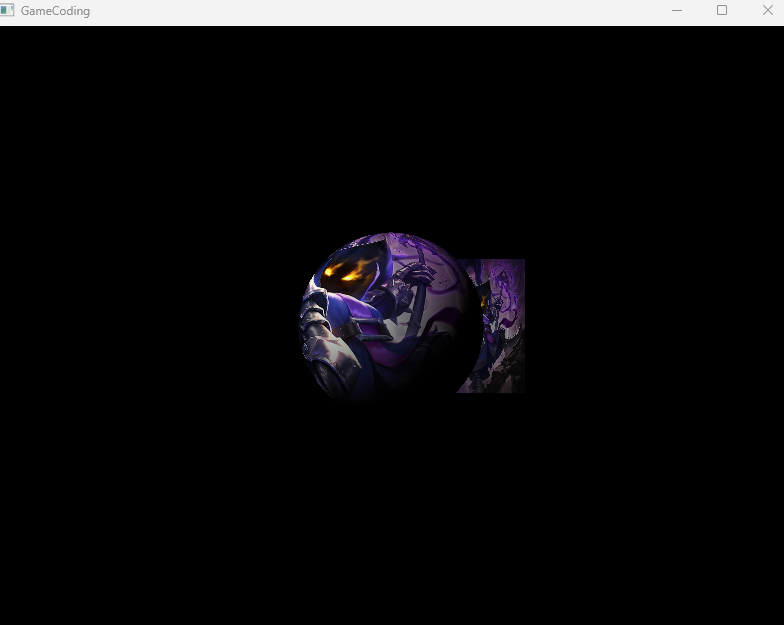
이때 큐브모양은 빛이 균일한 모습인데 이렇게 되는 이유는 큐브는 면상의 normal vector가 균일하기 때문이다.
3.Specular
Specular Light는 철과 같은 물체가 빛에 반사될 떄 반짝반짝하는 효과를 내주는 조명이다. 이 조명은 Diffuse Light와
비슷하지만 조명이 눈에 들어올 때의 효과에 관한 것으로 빛의 반사각과 카메라와의 각도가 중요하다. 결국 한 방향으로 완전히 반사되는 빛이며 퐁 반사모델을 따른다.
일단 쉐이더코드를 만들어주자 핵심은 반사되는 빛과 카메라사이의 각을 구해야하며 이를 바탕으로 specular 값을 구해주면 된다.
Lighting_Specular.fx
#include "00. Global.fx"

float3 LightDir;
float4 LightSpecular;
float4 MaterialSpecular;

Texture2D DiffuseMap;

MeshOutput  VS(VertexTextureNormal input)
{
    MeshOutput output;
    output.position = mul(input.position,W);
    output.worldPosition = output.position;
    output.position = mul(output.position, VP);
    output.uv = input.uv;
    //회전고려
    output.normal = mul(input.normal, (float3x3) W);

	return output;
}


//Specular 반사광
// 한방향으로 완전히 반사되는 빛- 퐁

float4 PS(MeshOutput input) : SV_TARGET
{
    //내장함수 방식
    //float3 R = reflect(LightDir, input.normal);
    //수학식 방식
    float3 R = LightDir - (2 * input.normal * dot(LightDir, input.normal));
    R = normalize(R);

    float3 cameraPosition = -V._41_42_43;
    float3 E = normalize(cameraPosition - input.worldPosition);

    float value = saturate(dot(R, E));      //clmap 0~1
    float specular = pow(value, 10);


    float4 color = LightSpecular * MaterialSpecular * specular;

    return color;
}

technique11 T0
{
	//하나의 통로
    PASS_VP(P0, VS, PS)
};
이렇게 해주고 빛의 세기와 빛을 받아주는 재질을 설정해주면 된다.
SpecularDemo.cpp
#include "pch.h"
#include "14. SpecularDemo.h"
#include "GeometryHelper.h"
#include "Camera.h"
#include "CameraScript.h"
#include "MeshRenderer.h"

void SpecularDemo::Init()
{
	RESOURCES->Init();
	_shader = make_shared<Shader>(L"11. Lighting_Specular.fx");

	// Camera
	_camera = make_shared<GameObject>();
	_camera->GetOrAddTransform()->SetPosition(Vec3{ 0.f,0.f,-10.f });
	_camera->AddComponent(make_shared<Camera>());
	_camera->AddComponent(make_shared<CameraScript>());

	//Object
	_obj = make_shared<GameObject>();
	_obj->GetOrAddTransform();
	_obj->AddComponent(make_shared<MeshRenderer>());
	{
		_obj->GetMeshRenderer()->SetShader(_shader);
	}
	{
		auto mesh = RESOURCES->Get<Mesh>(L"Sphere");
		_obj->GetMeshRenderer()->SetMesh(mesh);
	}
	{
		//Texture
		auto texture = RESOURCES->Load<Texture>(L"Veigar", L"..\\Resources\\Textures\\veigar.jpg");
		_obj->GetMeshRenderer()->SetTexture(texture);
	}

	//Object2
	_obj2 = make_shared<GameObject>();
	_obj2->GetOrAddTransform()->SetPosition(Vec3{ 0.5f,0.f,2.f });
	_obj2->AddComponent(make_shared<MeshRenderer>());
	{
		_obj2->GetMeshRenderer()->SetShader(_shader);
	}
	{
		auto mesh2 = RESOURCES->Get<Mesh>(L"Cube");
		_obj2->GetMeshRenderer()->SetMesh(mesh2);
	}
	{
		//Texture
		auto texture2 = RESOURCES->Load<Texture>(L"Veigar", L"..\\Resources\\Textures\\veigar.jpg");
		_obj2->GetMeshRenderer()->SetTexture(texture2);
	}

	RENDER->Init(_shader);
}

void SpecularDemo::Update()
{
	_camera->Update();
	RENDER->Update();

	//조명
	Vec4 light{ 1.f };
	_shader->GetVector("LightSpecular")->SetFloatVector((float*)&light);

	Vec3 lightDir{ 1.f,0.f,1.f };
	lightDir.Normalize();
	_shader->GetVector("LightDir")->SetFloatVector((float*)&lightDir);

	{
		//빨간색만 받아주기
		Vec4 material(1.f);
		_shader->GetVector("MaterialSpecular")->SetFloatVector((float*)&material);
		_obj->Update();
	}

	{
		//모든 색을 다 받아주는 재질
		Vec4 material(1.f);
		_shader->GetVector("MaterialSpecular")->SetFloatVector((float*)&material);
		_obj2->Update();
	}

}

void SpecularDemo::Render()
{

}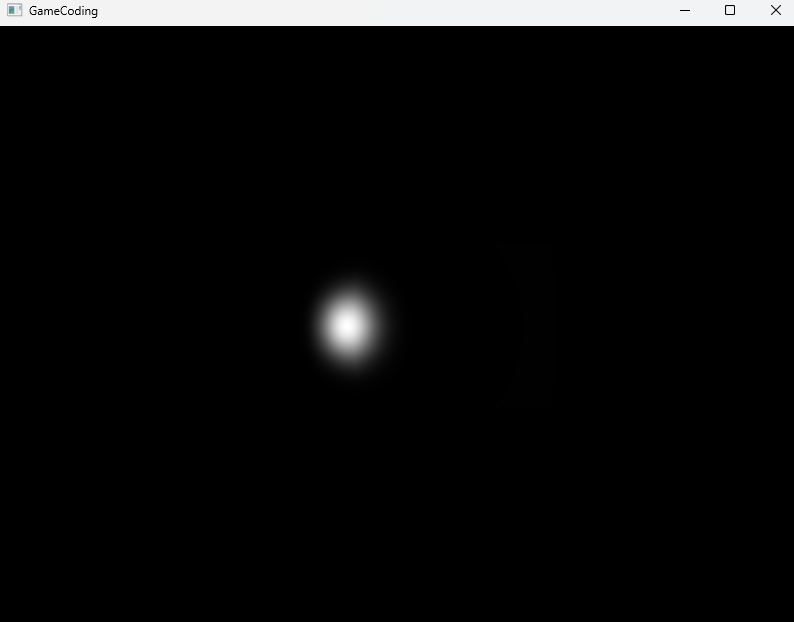
이렇게 해주면 지금은 오른쪽으로 빛을 비추고 있기 때문에 왼쪽 면이 빛나고 있는 것을 볼 수 있다.
또한 쉐이더 코드 상에서 PS단계에 value의 제곱값을 줄이게되면 빛나는 부분의 영역이 커지는 것을 볼 수 있다. 우리가 saturate 함수를 사용했기 때문에 0~1 사이의 값으로 나오게 되고 이를 제곱값으로 계산하게 되면 제곱값이 클수록 부분적으로 빛이 작용하는 것이다.
4. Emissive
물체의 outline 즉 외곽선을 나타내주는 조명이다. 외곽선을 구할 때 사용한다.
쉐이더 파일을 새로 생성해준 뒤 PS 부분을 고쳐주자. 이 Emissive Light는 빛의 방향과 색상은 필요없고 물체가 어떤 색을 받아들이는 지가 중요하다. PS방향에서 카메라 위치를 통해 카메라(눈)로 가는 방향벡터를 구해주고 이 벡터와 normal
벡터를 내적해주고 이 값을 수식에 맞게 계산해주면 된다. 이떄 emissive 값을 smoothstep을 통해 점차 증가하도록 해주고 이 값을 물체재질 값과 곱해줘서 반환해주면 된다.
Lighting_Emissive.fx
#include "00. Global.fx"


float4 MaterialEmissive;


MeshOutput  VS(VertexTextureNormal input)
{
    MeshOutput output;
    output.position = mul(input.position,W);
    output.worldPosition = output.position;
    output.position = mul(output.position, VP);
    output.uv = input.uv;
    //회전고려
    output.normal = mul(input.normal, (float3x3) W);

	return output;
}


//Emissive - 림라이트
// 외곽선 구할 때 사용

float4 PS(MeshOutput input) : SV_TARGET
{
    float3 cameraPosition = -V._41_42_43;
    //카메라로 가는 방향
    float3 E = normalize(cameraPosition - input.worldPosition);

    float value = saturate(dot(E, input.normal));
    float emissive = 1.0f - value;

    //점차 증가
    emissive = smoothstep(0.0f, 1.0f, emissive);

    float4 color = MaterialEmissive * emissive;

    return color;
}

technique11 T0
{
	//하나의 통로
    PASS_VP(P0, VS, PS)
};
이때 emissive 값이 커질수록 외곽선이 작아진다. 즉 E방향과 normal 방향이 멀어질수록 커진다